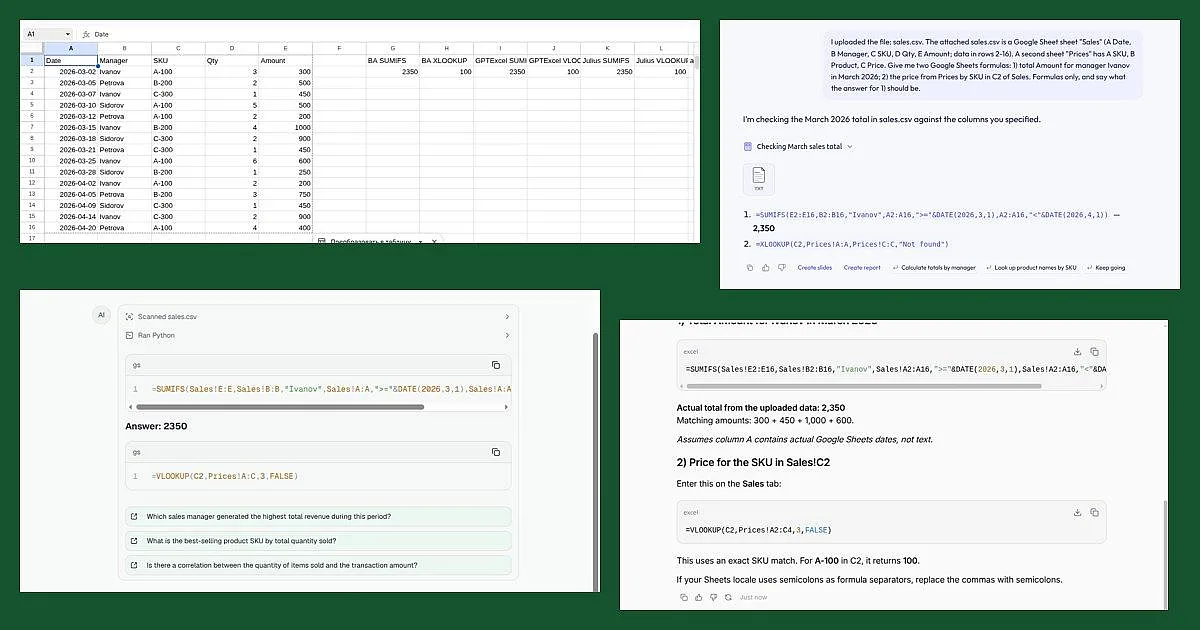
In short. We gave three services the same task on an invented sales table and checked every formula in a Google Sheet. The task: "sales total for manager Ivanov in March" (the right answer is 2350) and "price by SKU from a second sheet" (for A-100 the right answer is 100). Better Analyst, GPTExcel and Julius AI all passed: 2350 and 100 in all six formulas. But for all three, the formulas failed in our sheet at first until we replaced commas with semicolons (details below).
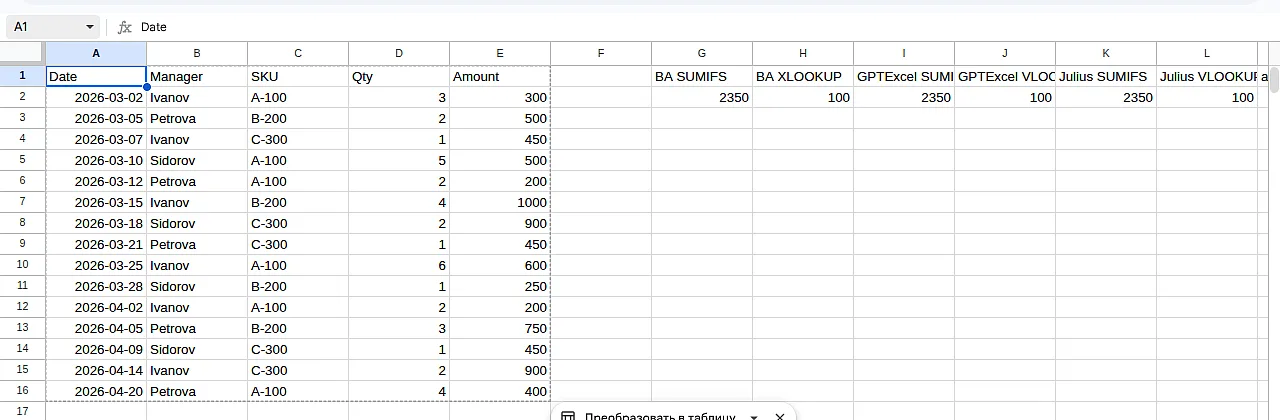
How we tested. We built a test sheet: 15 sales rows for three managers across March and April (date, manager, SKU, quantity, amount) and a second tab, "Prices", with a price per SKU. All data is invented. We uploaded the sales file to each service and asked in one sentence for two Google Sheets formulas: the total for Ivanov in March 2026 and the price by the SKU in cell C2. Then we copied each formula into a real Google Sheet and compared the result with a hand count: 300 + 450 + 1000 + 600 = 2350.
A few terms.
- A formula is an entry in a cell by which the spreadsheet calculates something.
- An argument separator is the sign between parts of a formula. English examples use a comma, but in sheets with some regional settings it is a semicolon.
What each one gave
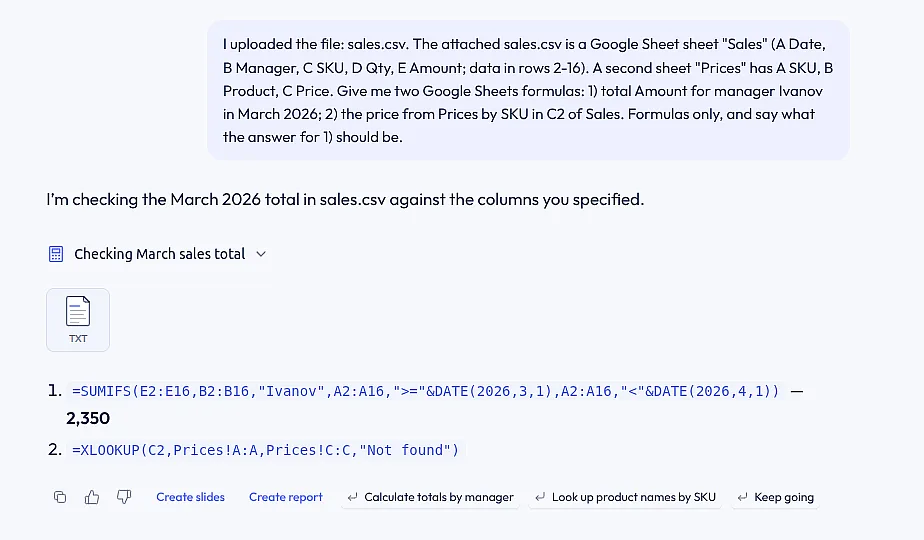
Better Analyst (formerly Formula Bot). The one-time free try on the generator page failed twice for us with "Something went wrong", so we signed in with Google: no card was needed, but there was a two-question survey. The free plan showed 10 messages and 25 AI actions at sign-in, and one chat holds one file (we could not upload the sales table and the price table together, so the second sheet had to be described in words). It returned SUMIFS with dates via DATE and XLOOKUP for the price, and itself computed 2350 from the file. After swapping commas for semicolons, both formulas in the Sheet returned 2350 and 100.
GPTExcel. Google sign-in, no card, plan limits not shown on screen. We uploaded the file and got SUMIFS and an exact-match VLOOKUP, "Answer: 2350". The formulas were right; after changing the separator they returned 2350 and 100.
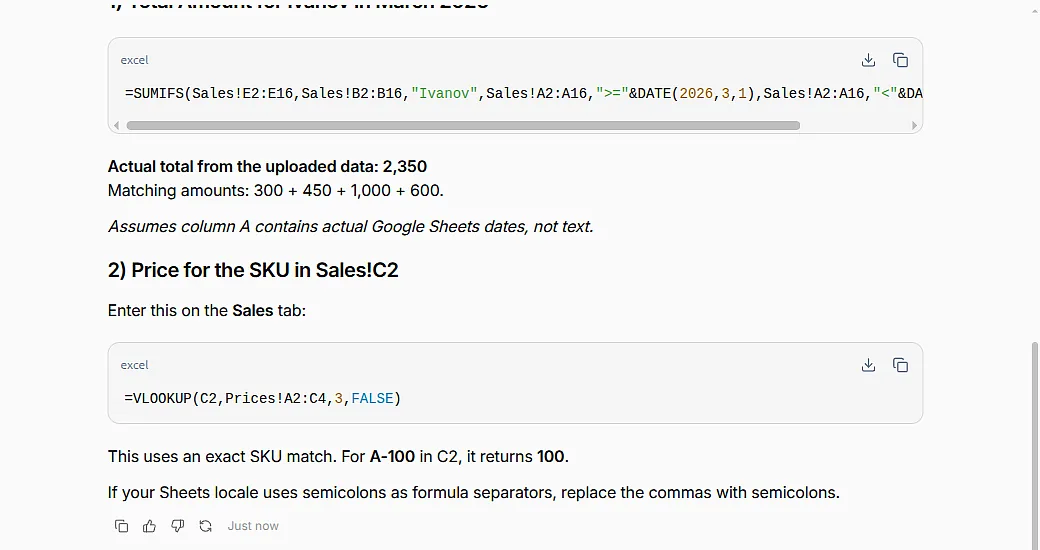
Julius AI. Google sign-in, a terms checkbox, no card asked. Although it is billed as a "data analyst", it wrote the formulas, computed the total from the file (2350, with the addends listed) and warned on its own: "if your Sheets locale uses semicolons, replace the commas". Both formulas with semicolons are right: 2350 and 100. One catch: for the price it used a range of only the three rows we listed in the prompt, so a SKU not in that list would not be found.
Where they went wrong (and what to do)
The main trap was not logic. All three wrote formulas with commas: =SUMIFS(E2:E16,B2:B16,"Ivanov",...). Our Google Sheet uses Russian regional settings, and such a formula gave #ERROR! at once. Replacing commas with semicolons made everything work. If you get a formula parse error: open "File → Settings", check the region, and in the formula swap , for ; (or back).
Two more observations:
- Better Analyst's
XLOOKUPworks in Google Sheets and recent Excel, but not in older Excel. In older Excel useVLOOKUP, as GPTExcel and Julius AI did. - Take the whole range (
Prices!A:C) rather than only the rows you mention: then adding SKUs will not break the formula.
Which to pick (from our experience)
- You need a formula for Google Sheets or Excel, one file: Better Analyst or GPTExcel. Both gave formulas that were right in logic; only the separator was off. GPTExcel did not ask for a card and did not limit us in the test; Better Analyst's free plan has few messages, but it shows the result from your file.
- You want the formula, a check against the file and an explanation: Julius AI. It computed the total itself, showed the addends and warned about the separator.
How to check the result
Even a correct formula can calculate the wrong thing on your data: take the wrong column, skip empty cells, or miss a different date format.
- Compare with a hand count on 3-5 rows, including one with an empty cell.
- Check the total another way, for example filter the manager and look at the sum at the bottom.
- Check the range edges: the formula must cover all rows, not only the first ones.
- Check the separator (comma or semicolon) and the date format: if dates are stored as text, date formulas will not work.
- Do not upload personal data or passwords. In our test the data was invented.
- Keep a copy of the file before any changes.
Checked by hand on 28.10.2026 on a test sheet: 15 rows of invented sales, two tabs, the same two tasks. If a service has changed its terms, tell us in the comments under the post in our Telegram channel, Pro AI Expertise (the channel is in Russian), and we will update the piece.